You can control whether ChatGPT trains on your conversations and whether they show up in certain places, but you can’t make it fully private in the sense of guaranteeing nobody, including OpenAI, will ever see what you type. What follows are the genuine, verified settings that get you the most control currently available, along with the honest limits on what they actually do.
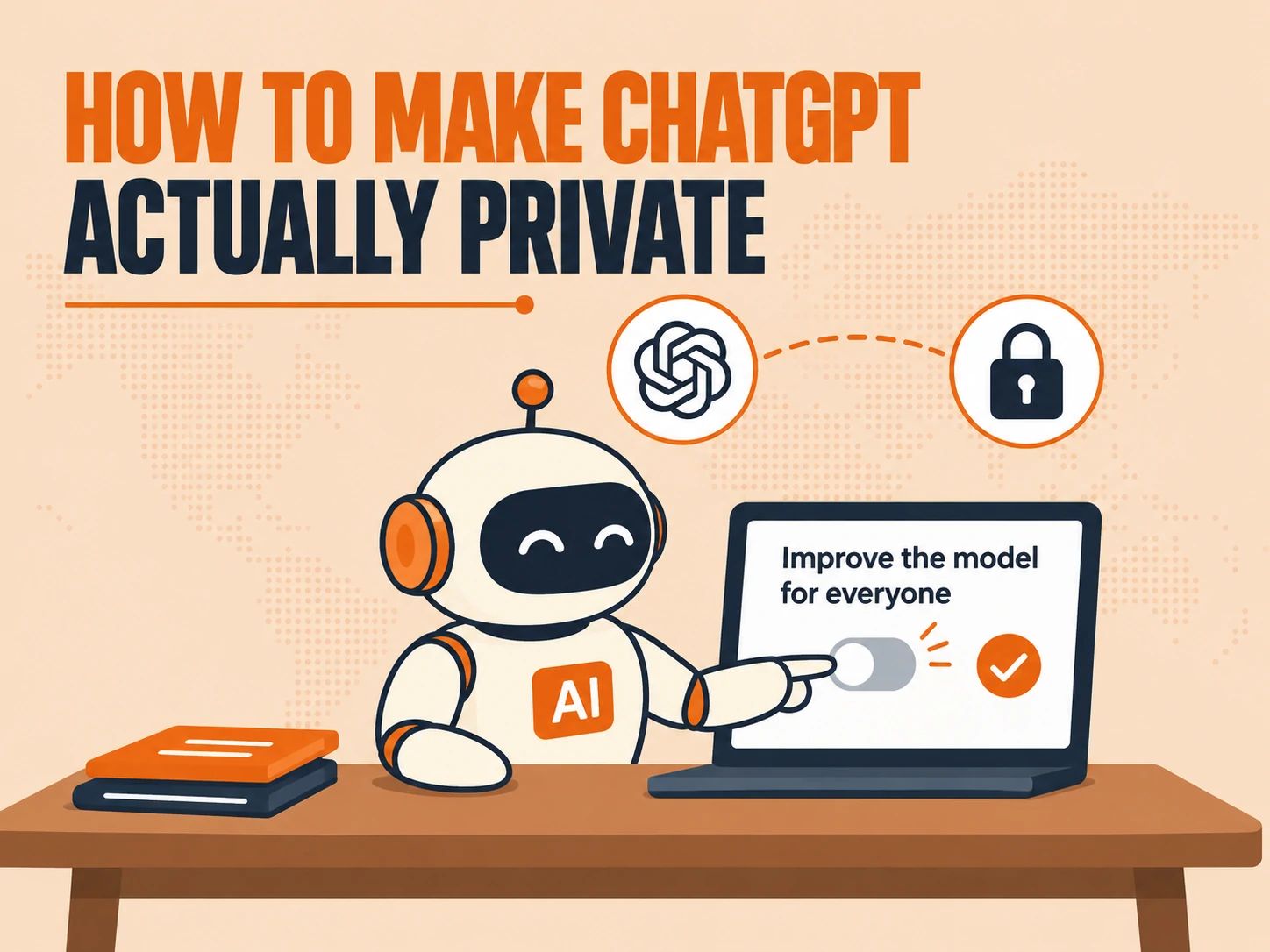
OpenAI’s own documentation confirms the main lever is a setting called “Improve the model for everyone,” found under Settings > Data Controls, turning it off stops new conversations from training OpenAI’s models, but it does not delete your chat history, and it’s a completely separate control from Temporary Chat. There’s also a catch almost nothing currently ranking for this question mentions: giving a thumbs up or thumbs down on a response can pull that entire conversation back into training, even after you’ve opted out.
The One Setting That Actually Controls This
On web: open your account menu, select Settings, select Data Controls, then turn off “Improve the model for everyone” and select Done.
On iOS and Android: open the sidebar, select your profile icon to open Settings, select Data Controls, then turn off “Improve the model for everyone.”
If you’re not signed in: open Settings in that browser session and turn off the same toggle, your choice is saved to that browser specifically, not to an account.
Once you’re signed in, this setting applies across every device tied to your account.
What Turning It Off Actually Does (and Doesn’t Do)
Turning off the training setting does not delete or hide anything you’ve already saved. Regular chats stay in your history, archived chats stay archived, and project chats stay in their projects exactly as they were. Archiving a chat is a separate action entirely, it has no effect on whether that conversation was used for training, only the training toggle controls that.
Giving Feedback Can Pull a Conversation Back Into Training
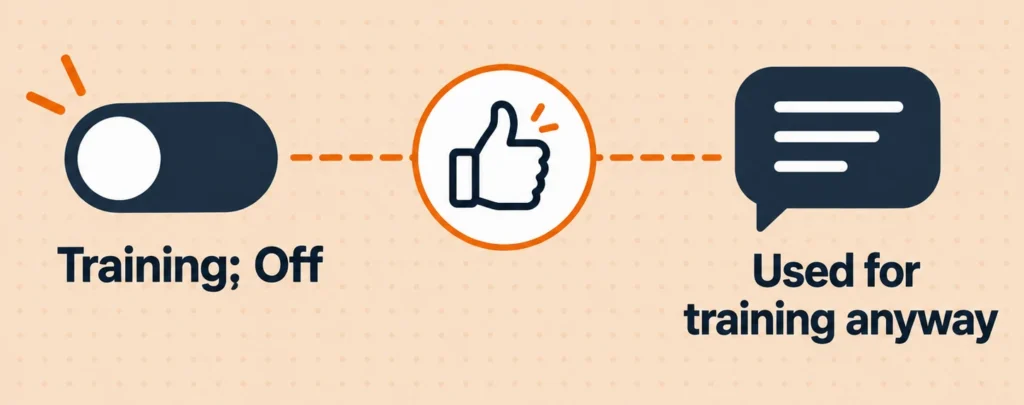
This is the part most guides skip. Opting out of training does not protect every interaction. If you give feedback on a response, a thumbs up or thumbs down, OpenAI states directly that the entire conversation tied to that feedback may be used to train its models anyway, regardless of your Improve the model for everyone setting. If privacy is the actual goal, skip the feedback buttons on anything you’d rather not have reviewed.
If You Use Codex
On a personal ChatGPT plan, the same toggle covers your Codex tasks too, turning it off in ChatGPT or selecting “Do not train on my content” in the OpenAI Privacy Portal both work, and you don’t need to do both. But Codex has its own separate setting called Include Environments, which controls whether extra context from your Codex environments can be used for training. Neither the ChatGPT toggle nor the Privacy Portal option touches that setting, it has to be turned off on its own.
Temporary Chat Is a Different Tool Entirely
Temporary Chat is not the same thing as opting out of training, and treating them as interchangeable is one of the more common mistakes in existing guides. While a chat stays temporary, it won’t appear in your history, it won’t create or update memories, and it won’t be used to improve OpenAI’s models, though it can still be retained for up to 30 days for safety purposes. Before you start one, you can also choose whether it’s personalized, meaning it can draw on your existing memories and custom instructions, or fully stripped of that context. If you save a temporary chat, it stops being temporary and immediately follows your regular account settings going forward.
Already Opted Out? Export or Delete Your Data
If you’re on a Free, Go, Plus, or Pro plan, you can request a full export of your data directly from ChatGPT’s settings, or through the Privacy Portal. The same accounts can also delete their account entirely from settings, which is permanent and takes your subscriptions and associated data with it. Business, Enterprise, and Healthcare workspace users don’t get this as a self-service option, both export and account deletion have to go through the workspace owner instead. Some Edu workspaces allow self-service export if an administrator has enabled it.
If You Use ChatGPT Through Work
Managed workspaces, Business, Enterprise, Edu, and Healthcare, work the opposite way from a personal account by default. OpenAI states it does not use content from these workspaces to train its models at all, with no opt-out required, since that’s already the baseline. Your organization can still layer its own retention, memory, and access policies on top, so if something about your work account behaves differently than this guide describes, that’s likely why.
Model training is only one way your conversations can end up somewhere you didn’t intend. Malicious browser extensions have separately been caught secretly copying AI chatbot conversations entirely, a different threat with nothing to do with this setting, since it happens outside ChatGPT’s own controls entirely regardless of what you’ve toggled here.
Frequently Asked Questions
How do I prevent ChatGPT from using my data to train its models?
Turn off “Improve the model for everyone” under Settings > Data Controls, or select “Do not train on my content” in the OpenAI Privacy Portal. Either one works on its own, you don’t need to do both, but remember that giving feedback on a response can still pull that conversation into training regardless.
Does turning off model training delete my ChatGPT history?
No. Your regular, archived, and project chats all remain exactly as they were. You have to delete a specific chat or your entire account separately if you want content actually removed.
Is Temporary Chat the same as opting out of training?
No. Temporary Chat is a separate mode that keeps a conversation out of your history and memory entirely while it’s active, whereas the training toggle is an ongoing account-wide setting that applies to every regular conversation you have.
Does ChatGPT still use my data if I give feedback after opting out?
Yes. OpenAI states that if you provide feedback, such as a thumbs up or thumbs down, the entire conversation tied to that feedback may be used to train its models, even if you’ve already turned off the general training setting.
Can I export or delete my ChatGPT data?
Free, Go, Plus, and Pro users can do both directly in settings or through the Privacy Portal. Business, Enterprise, and Healthcare workspace users have to go through their workspace owner instead.
Does ChatGPT train on my conversations if I use it through my employer?
By default, no. Business, Enterprise, Edu, and Healthcare workspaces aren’t used for model training at all without any opt-out needed, which is the reverse of how a personal account behaves by default.